Radio Firmware Upgrade Guide
One guide · Windows, Mac & Linux
The steps are the same for every supported model. This is the update that needs a computer and a programming cable.
🔎 First, Check Your Model
The Firmware Upgrade tool supports the models below. If your model is in this list, you're ready to follow this guide:
Can't find your model? This tool doesn't support it yet — tap Me → Feedback in the app and ask us.
📦 What You Need
- Your radio
- Programming cable
- 💻 A computer — Windows PC, Mac or Linux
⬇️ Step 1 · Download the Firmware Upgrade Tool
It's the same tool on every computer — just download the one for your operating system:
⬇Download Firmware Upgrade Tool (Windows) ⬇Download Firmware Upgrade Tool (Mac/Linux)📦 Step 2 · Install & Open the Tool
🪟 If You're on Windows
Unzip the downloaded file, run the installer and follow the on-screen prompts. Then open the Firmware Upgrade application.
If You're on a Mac
Macs come with two different processor types. Pick the right installer file inside the zip you downloaded:
Apple Silicon (M-series)
Macs made after late 2020 — most common today
FirmwareUpgrade_1.0.5_Installer.dmg
Intel Chip
Older Macs (before late 2020)
FirmwareUpgrade_1.0.5_Intel_Installer.dmg
Double-click the correct .dmg file and follow the on-screen steps. A PDF guide is included in the zip you downloaded — it walks you through the install if you get stuck.

The PDF guide inside the zip looks like this.
🔌 Step 3 · Connect Your Radio
Plug the programming cable into your computer, then connect it to your radio. Make sure the radio is powered on.
🛠️ Step 4 · Set Up the Upgrade in the Tool
The tool looks like this when you open it — nice and simple:
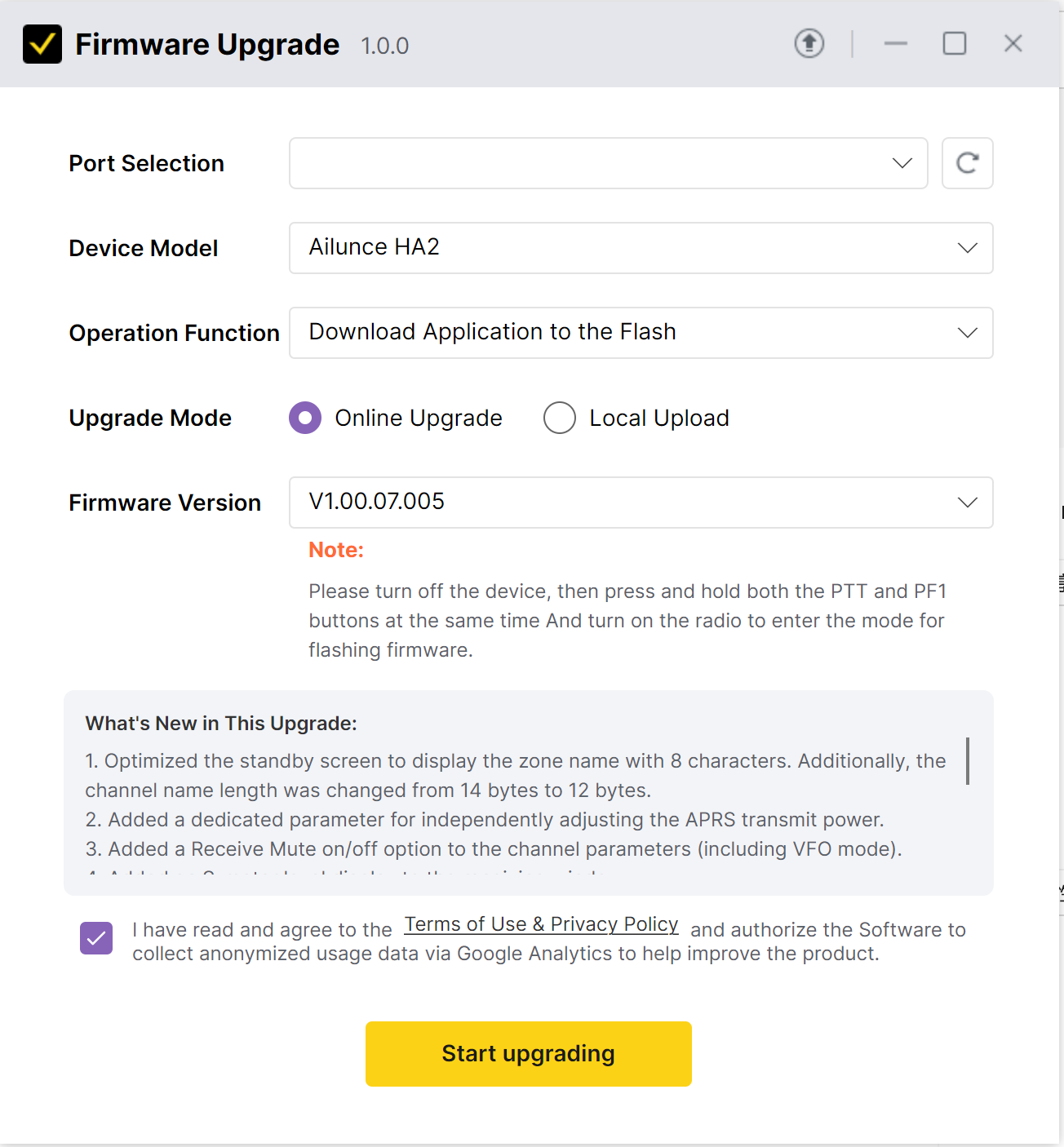
Port Selection — choose your radio's port. If the list is empty, click the ↻ refresh button next to it.
Device Model — select your radio model from the list.
Operation Function — leave it at the default "Download Application to the Flash".
Upgrade Mode — keep "Online Upgrade" selected. The tool fetches the latest firmware for your model automatically — no firmware file to download or upload.
Firmware Version — shows the latest version available for your model. The "What's New in This Upgrade" box below lists what this update brings.
🔴 Step 5 · Put the Radio in DFU Mode
This is the important step (the tool shows you this note too):
🚀 Step 6 · Start Upgrading
Tick the checkbox to agree to the Terms of Use & Privacy Policy, then click the yellow Start upgrading button.
Don't unplug or turn off anything during the update. When it's done, the radio restarts on its own — just let it run.
✅ How to Verify It Worked
- On the radio, open the Menu and look for Radio Information (called "Firmware Version" on some models — menu names vary slightly by model).
- The version shown should match the Firmware Version you saw in the upgrade tool. That's it — the update worked.
Quick Troubleshooting
🔴 My radio won't go into DFU mode (no red light).
Make sure you're holding BOTH the PTT and PF1 buttons at the same time BEFORE you turn the radio on. The buttons must be pressed while the radio is powered off, then you turn it on while still holding them.
💻 Port Selection is empty — the tool doesn't see my radio.
Click the ↻ refresh button first. If the list is still empty, try a different USB port. You may also need to install the CH340 USB driver — this is a common issue and usually solved by reinstalling the driver or trying another USB port. Also make sure the radio is powered on.
📦 Do I need to download the firmware file myself?
No. Keep Upgrade Mode on Online Upgrade and the tool downloads the latest firmware for your model automatically. (Only choose "Local Upload" if our support team gives you a firmware file to load.)
🤔 I'm not sure which Mac chip I have.
Click the Apple menu in the top-left of your screen → "About This Mac". The line that says "Chip" or "Processor" will tell you. If it says "Apple M1/M2/M3/etc." — use the M-series installer. If it says "Intel" — use the Intel installer.
⚠️ My update failed halfway. What now?
Don't panic. Turn the radio off, then put it back into DFU mode (PTT + PF1, then power on), and run the update again. The radio will stay in DFU mode until a successful update.
You're All Set!
That's it — your radio is now running the latest firmware. Enjoy the new features!
Have questions or suggestions?
Open the app and tap Me → Feedback to reach us. We'll get back to you as soon as possible.